Military-grade Space and Flight Sim Precision
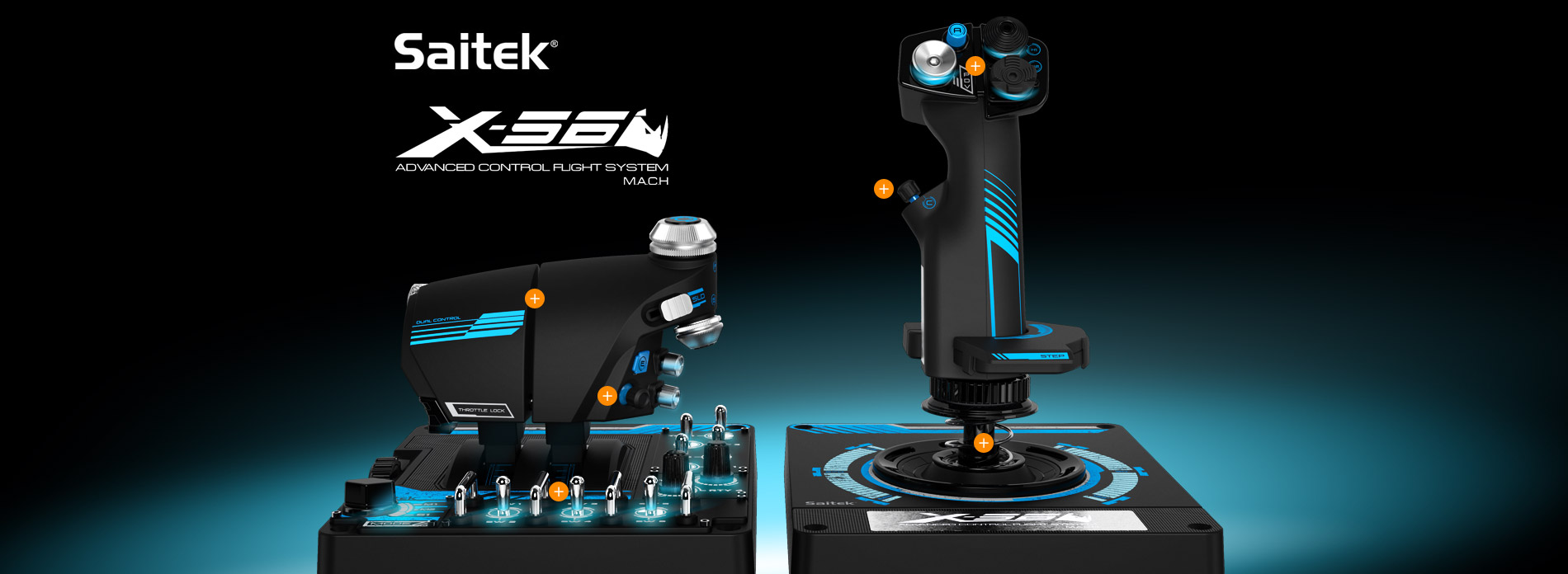
Saitek introduces the new X-56 Rhino H.O.T.A.S. System. Built to the same exacting standards of Saitek's award-winning Pro Flight range,
the X-56 Rhino delivers a multitude of customizable options including all the control surface options required to achieve the exact level of
performance that aspiring combat pilots demand.
The X-56 places controls perfectly under your fingers where subtle distinctions in button feel and shape help you navigate the control set with ease. Even the switches on the base of the throttle are staggered or separated so telling them apart from feel alone is possible, leaving you free to concentrate on the immersive VR experience.


Connect with us
Support